CodeNavigator
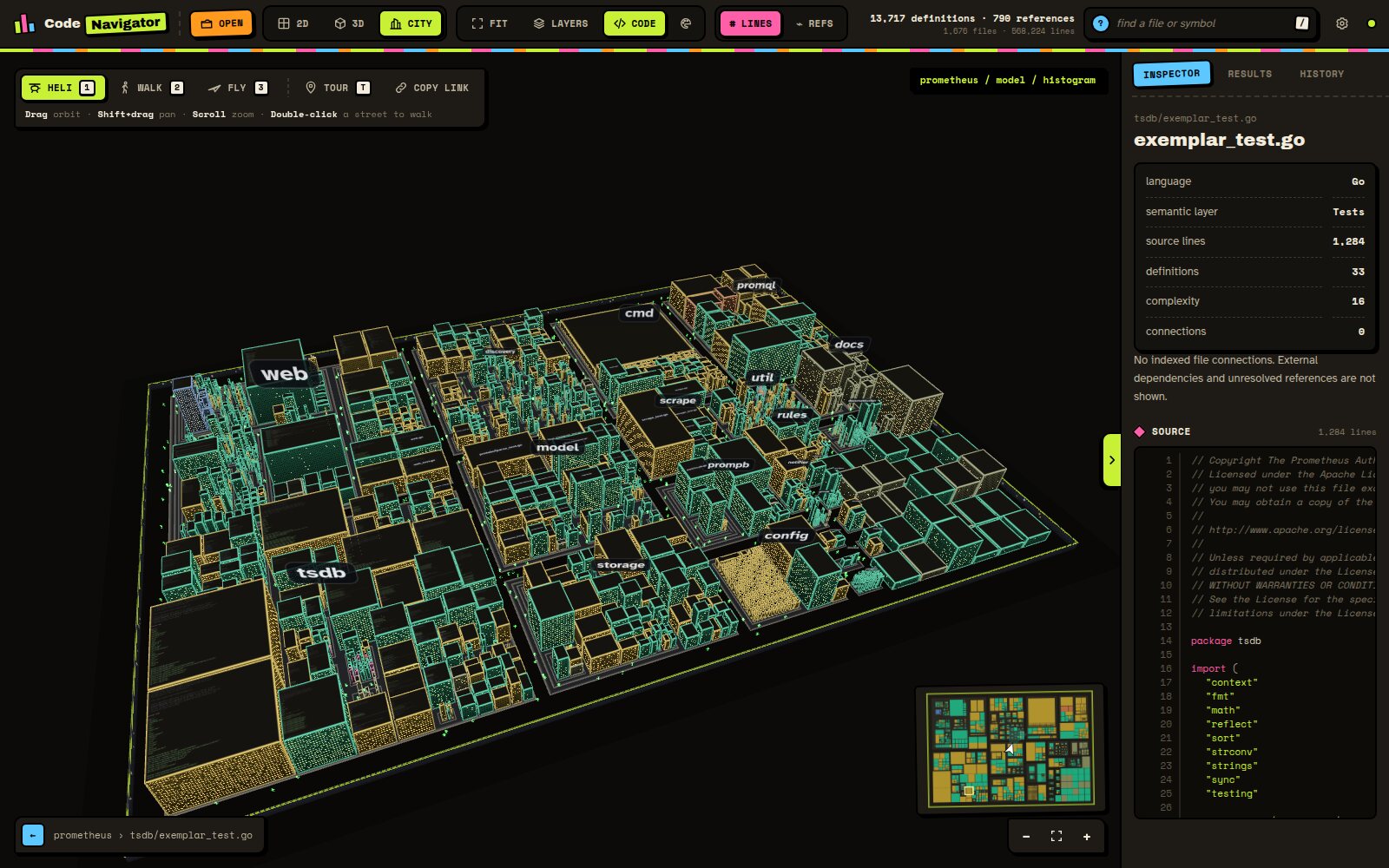
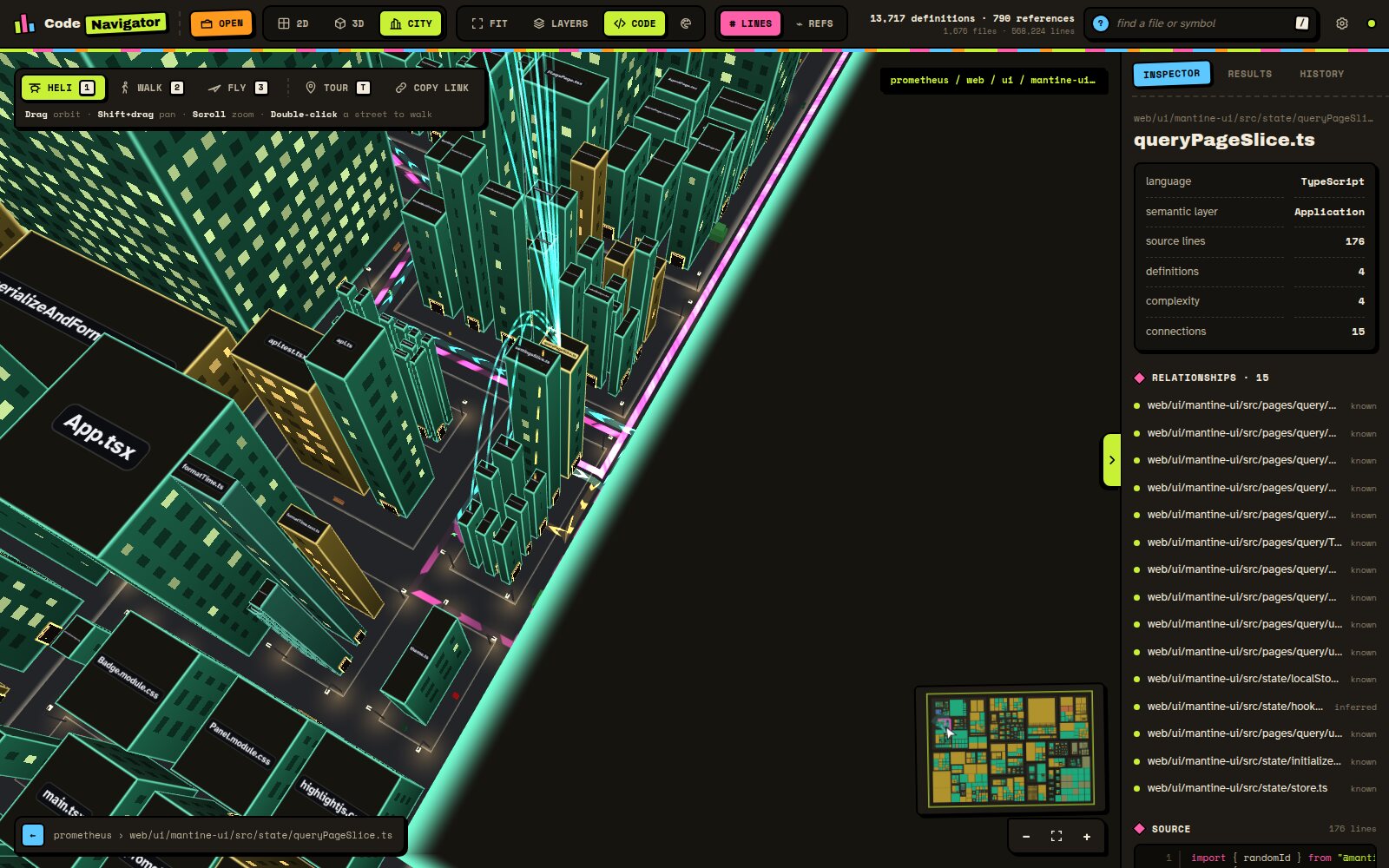
Paste in a GitHub repository and a minute later you are hovering over it. Every file is a building. Every folder is a street, and the top-level folders are whole districts with their names floating over the skyline. Big files are wide, complicated files are tall, and files full of functions have their lights on. Click a building and glowing routes run along the roads to everything it imports and everything that depends on it. Files with open security alerts are on fire.
Then you can land, walk down the street, read the source code off the side of a building, and chat to nobody in particular, because the little green residents are mostly there for company.
- Code exploration
- 3D visualisation
- GitHub
- Security alerts
- Dependency mapping
What it is:
A code explorer you can walk around
Works with:
Public and private GitHub repositories, in any modern browser
Status:
Live at codenav.dixon.cx, free to use
Why a city?
Opening an unfamiliar codebase usually means a file tree, a search box and a slowly growing sense of dread. You can read files one at a time, but you can't see the shape of the thing: where the weight is, which corners are dense and tangled, what talks to what, and which bits nobody has touched in years.
People are extraordinarily good at remembering places. You might not remember the path to a module, but you will remember that it was the tall yellow tower two streets back from the big district with the fire in it. CodeNavigator leans on that. It gives a repository geography, so you can build a mental map of it the same way you learn your way around a new town.
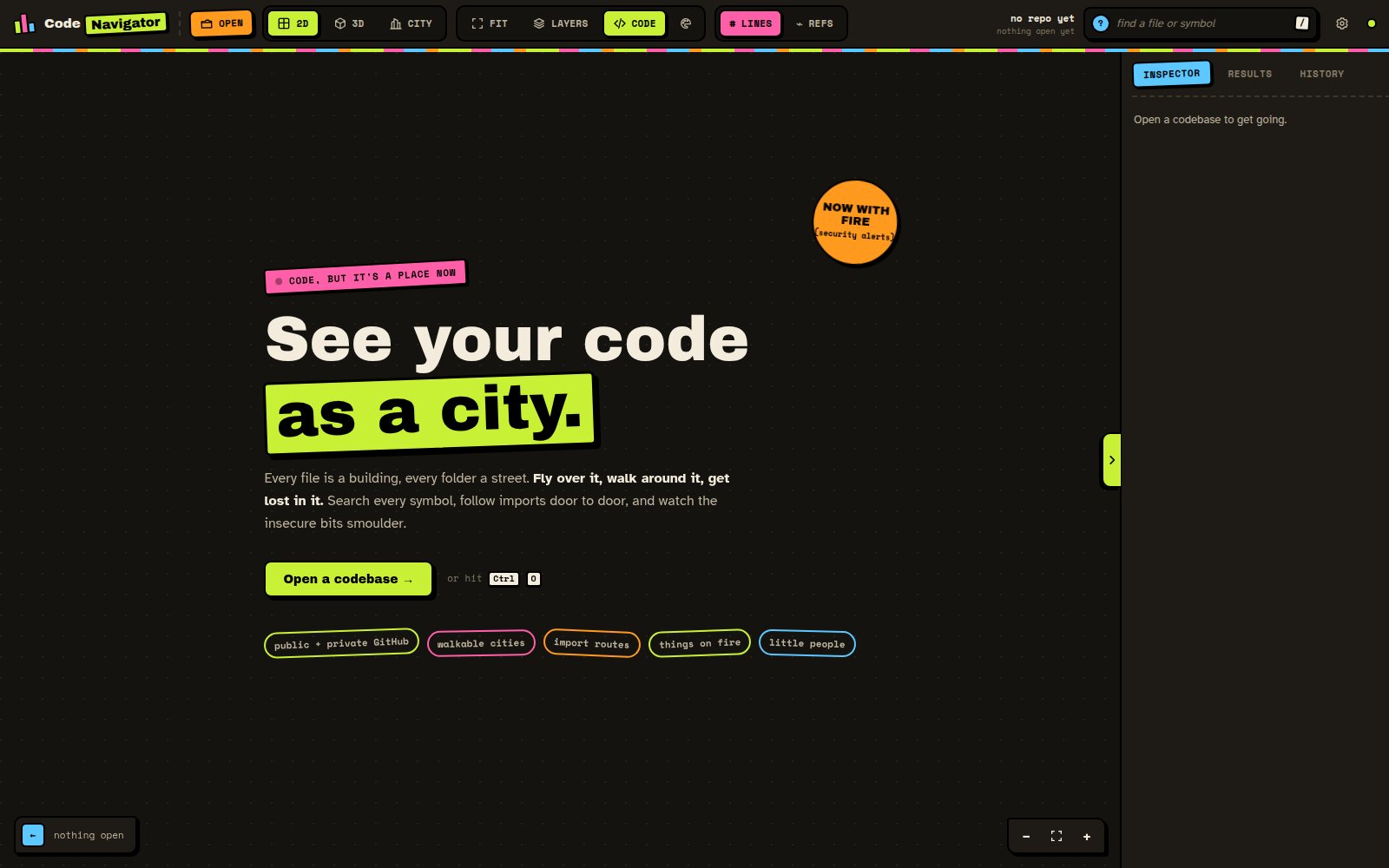
Opening a codebase
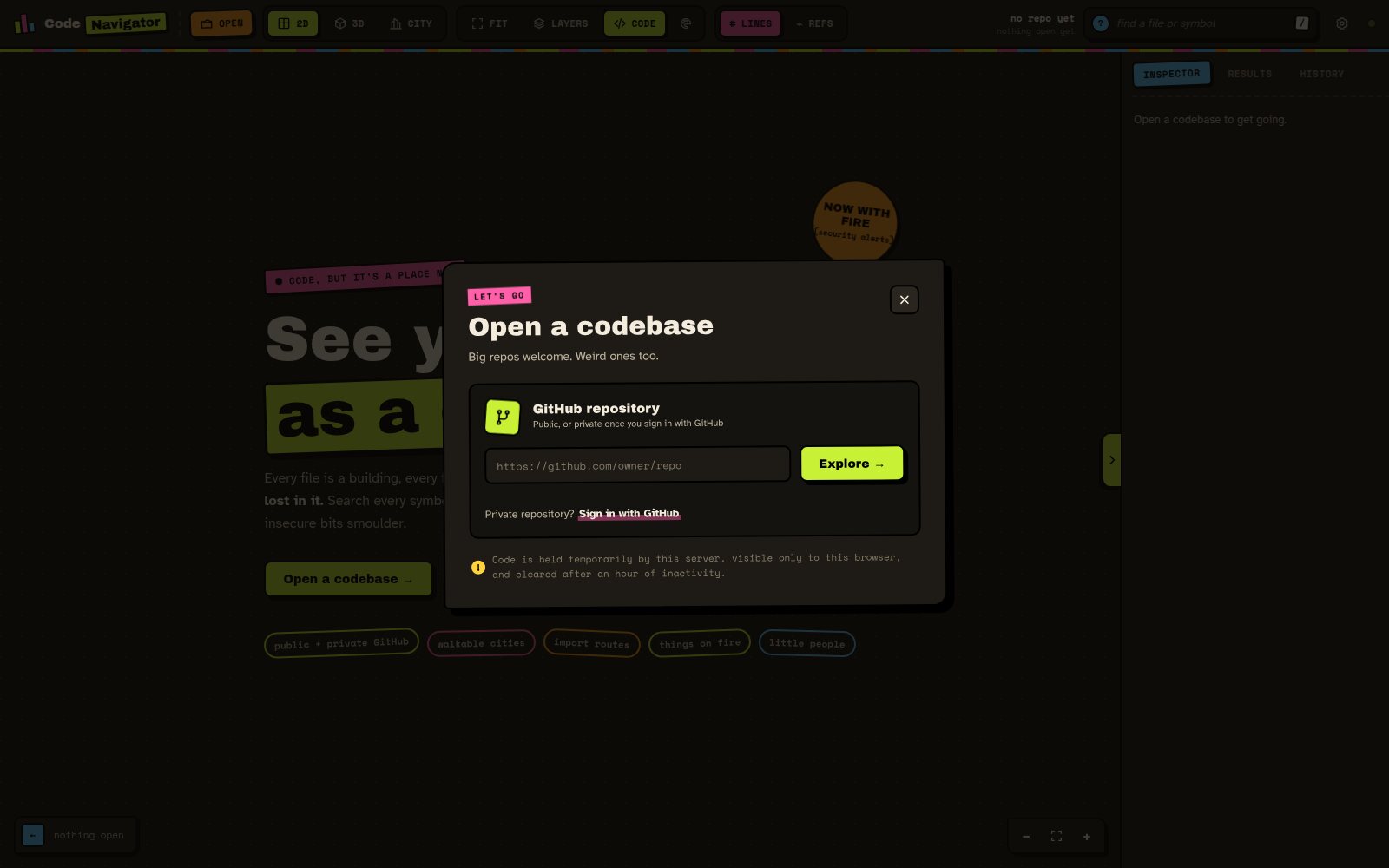
Click Open a codebase, paste a GitHub URL, press Explore. The repository is cloned, every file is read, and a progress bar keeps you company while it counts lines, finds definitions and works out which files import which. Even large projects are ready in a few seconds; the Prometheus monitoring system, with nearly 1,700 files and more than half a million lines, takes less time than making a coffee.
- Public repositories work straight away with no account.
- Private repositories work once you sign in with GitHub. You only ever see repositories your own GitHub account can already see, and the sign-in lasts for your session.
- Coming back from GitHub drops you straight back into the Open dialog with your repository filled in, so carrying on is one key press.
- What you load is yours: each browser gets its own private workspace, other visitors can't see what you've opened, and everything is cleared after an hour of inactivity.
Three ways to look at it
The same codebase, three different views, switched with one click in the toolbar.
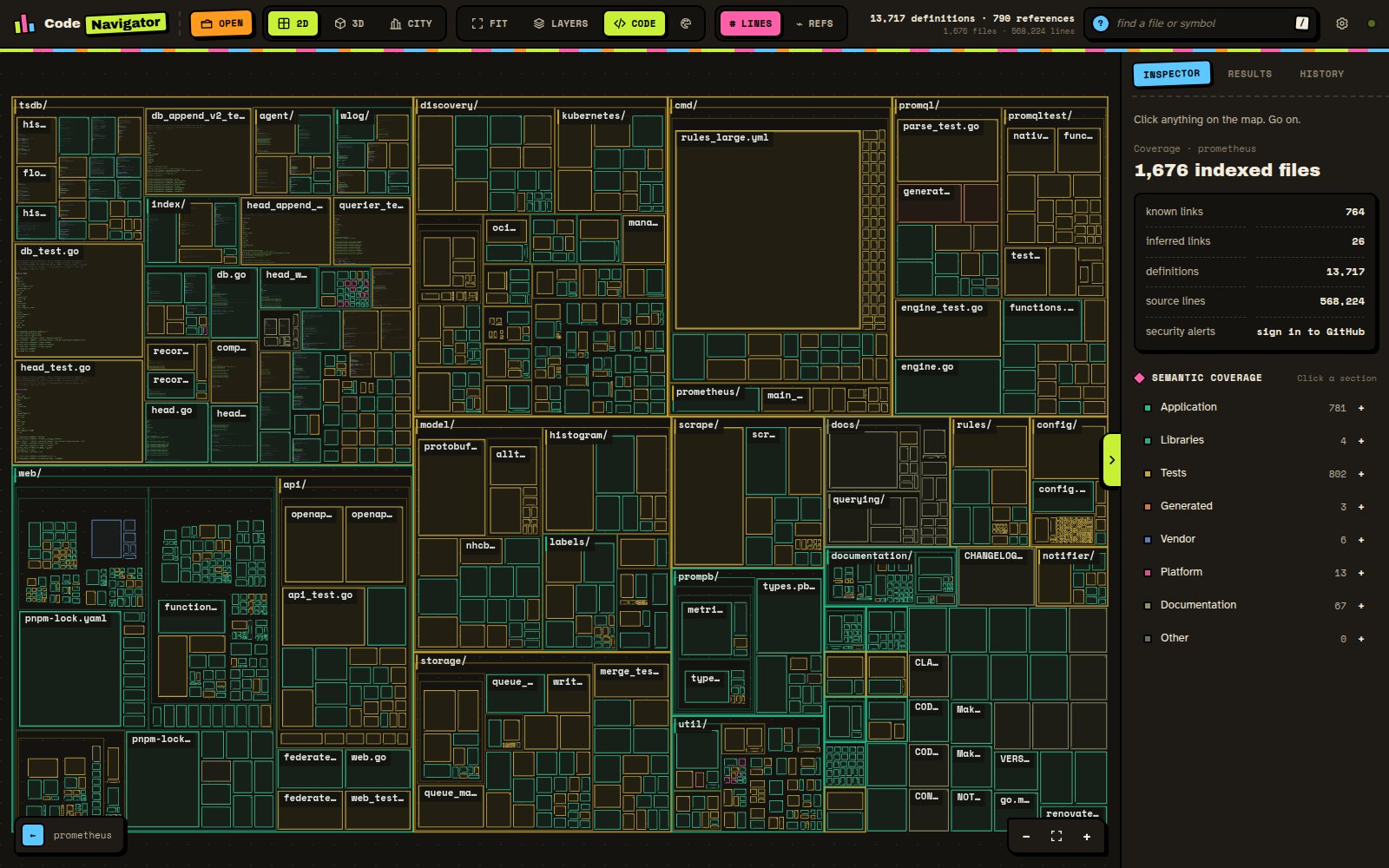
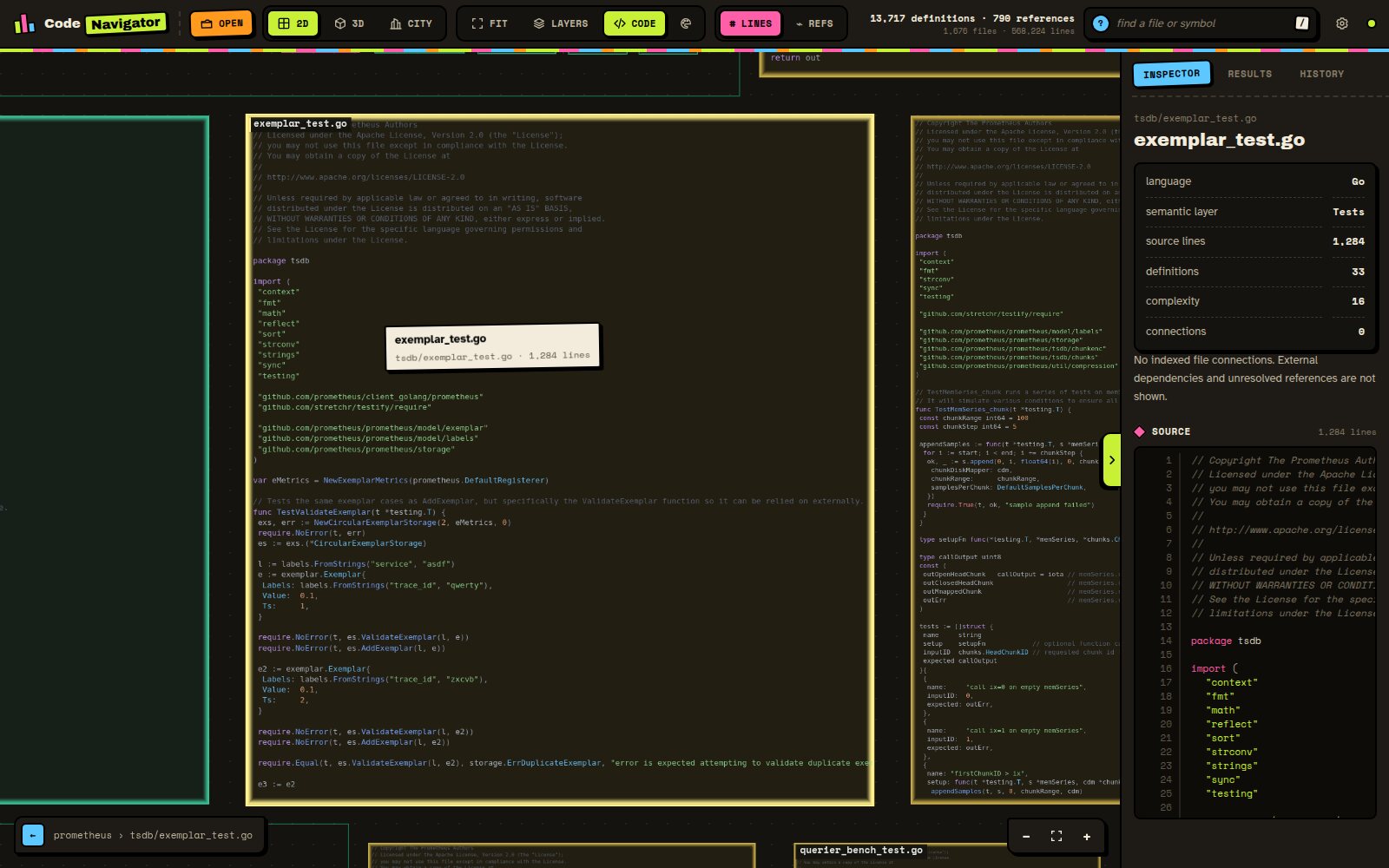
The 2D map
A flat map where every file is a tile, packed inside its folder, inside its parent folder, all the way up. Tiles are sized by lines of code, or by how connected they are if you switch the metric to references. Folder names label the regions, colours show what kind of code each file is (application, tests, libraries, generated, vendored, platform-specific or documentation), and the layer legend jumps you straight to a list of every file in a category.
Zoom in and the tiles fill with the file's actual source code, syntax highlighted, so you can go from the whole repository down to a single line without ever opening a file. Double-click any tile to fly to it.
The 3D landscape
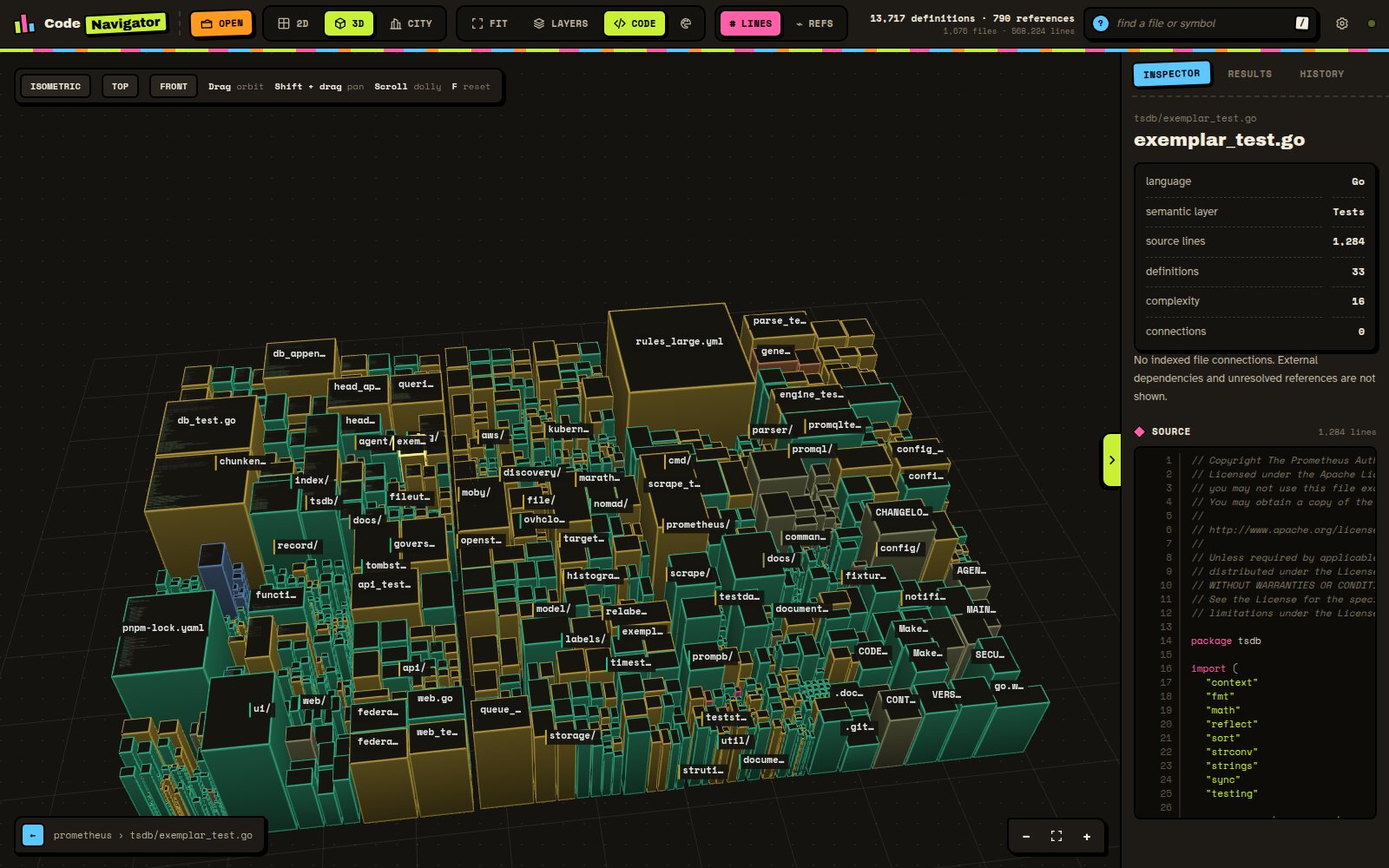
The same map, raised into blocks. Taller blocks are more complex, so tangled areas of the codebase stand out as ridges and spikes at a glance. Orbit around it, pan across it, and swoop in close enough to read the code printed on the top of each block. Handy preset angles give you an isometric overview, a straight-down plan or a view from the front.
The city
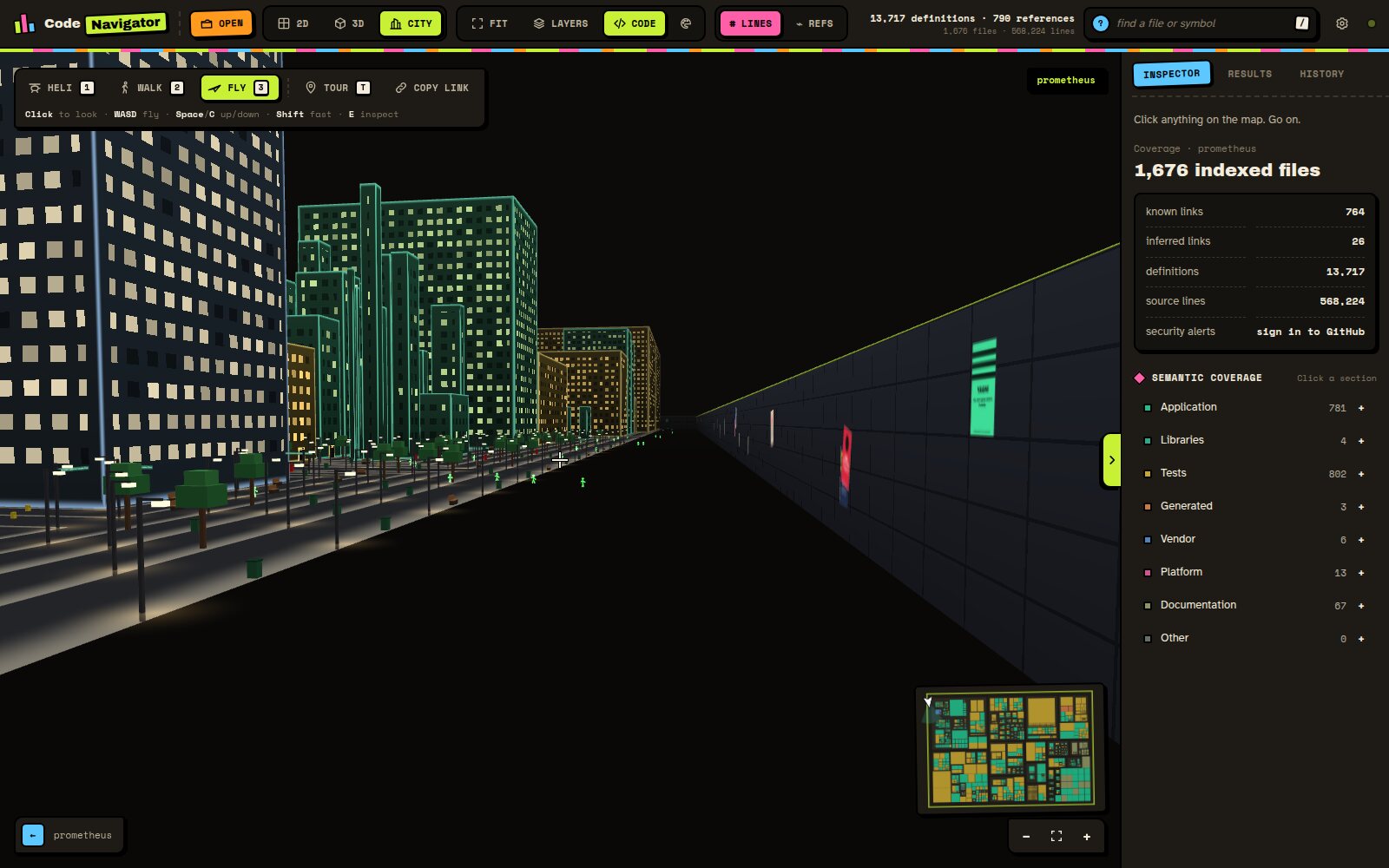
This is where it gets silly, in the most useful way. The repository becomes a proper city at night, built to human scale: a small project is a village, a big one is a sprawling metropolis you can get genuinely lost in. The rest of this page is mostly about the city, because there is a lot of it.
Reading the city
Everything you see means something, and after a couple of minutes you stop needing the key.
- Districts are the top-level folders, separated by wide avenues, with their names floating above their tallest tower so you can orient yourself from anywhere.
- Blocks and streets are the folders inside them. The deeper the folder, the narrower the street.
- Buildings are files. Footprint follows the number of lines, height follows complexity, so a big data file is a wide low warehouse and a dense piece of logic is a skyscraper.
- Lit windows show definitions. Files packed with functions and classes glow; files with almost nothing in them sit dark.
- Colour shows what kind of code it is, with three palettes to choose from.
- Roofs show the file's name and, from low enough, its source code.
- Street signs stick out from the buildings on each corner and name the folder that block belongs to, so at a crossroads every corner tells you which folder you are standing next to.
- Doors sit in the middle of a wall, never tight against a corner, and glow warmly in the dark. Buildings on a street get a front door facing it. Buildings tucked behind others get a back door onto an alley that leads out to the nearest street.
- Street furniture lines every folder's pavement. Streetlights stand along the folder boundaries, at the corners and every twenty metres or so, throwing pools of light onto the ground, with bins, benches, trees, fire hydrants and post boxes in between. Nothing is ever left in the road or dumped on the black ground outside the city's folders, and doorways are always kept clear.
- Traffic drives round the blocks inside every folder, headlights on, keeping to the right. Cars stick to the grey streets and never wander onto the black ground between districts, and if you stand in the road they stop and wait for you rather than running you over.
- Posters are pasted all along the inside of the city wall at wonky angles, mixing questionable civic advice with facts about the repository you are in, such as its tallest tower, its biggest district and its most connected file.
Getting around
There are three ways to move, and you can switch between them at any time with the 1, 2 and 3 keys.
- Helicopter is the overview. Drag to circle around, hold Shift and drag to slide across the city, scroll to go higher or lower, and double-click any building to swoop down to it.
- Walk puts you on the pavement at eye height. Double-click any street from the helicopter to be dropped there. Click to look around with the mouse, use W, A, S and D to walk and hold Shift to run. You can't walk through buildings, and you can't leave through the city wall either.
- Fly is walking with the ground removed. Space goes up, C goes down, and moving forward follows wherever you are looking, so you can dive between the towers and pull up over the roofs.
A minimap in the corner shows the whole city, which way you are facing, any fires and the routes for the file you've picked. Click anywhere on it to go straight there. At the top of the screen your current "address" is always shown as the folder path you are standing in.
On a phone or tablet the left thumb becomes a joystick, the right thumb looks around, and pinching zooms, or changes altitude when flying.
Inspecting a file
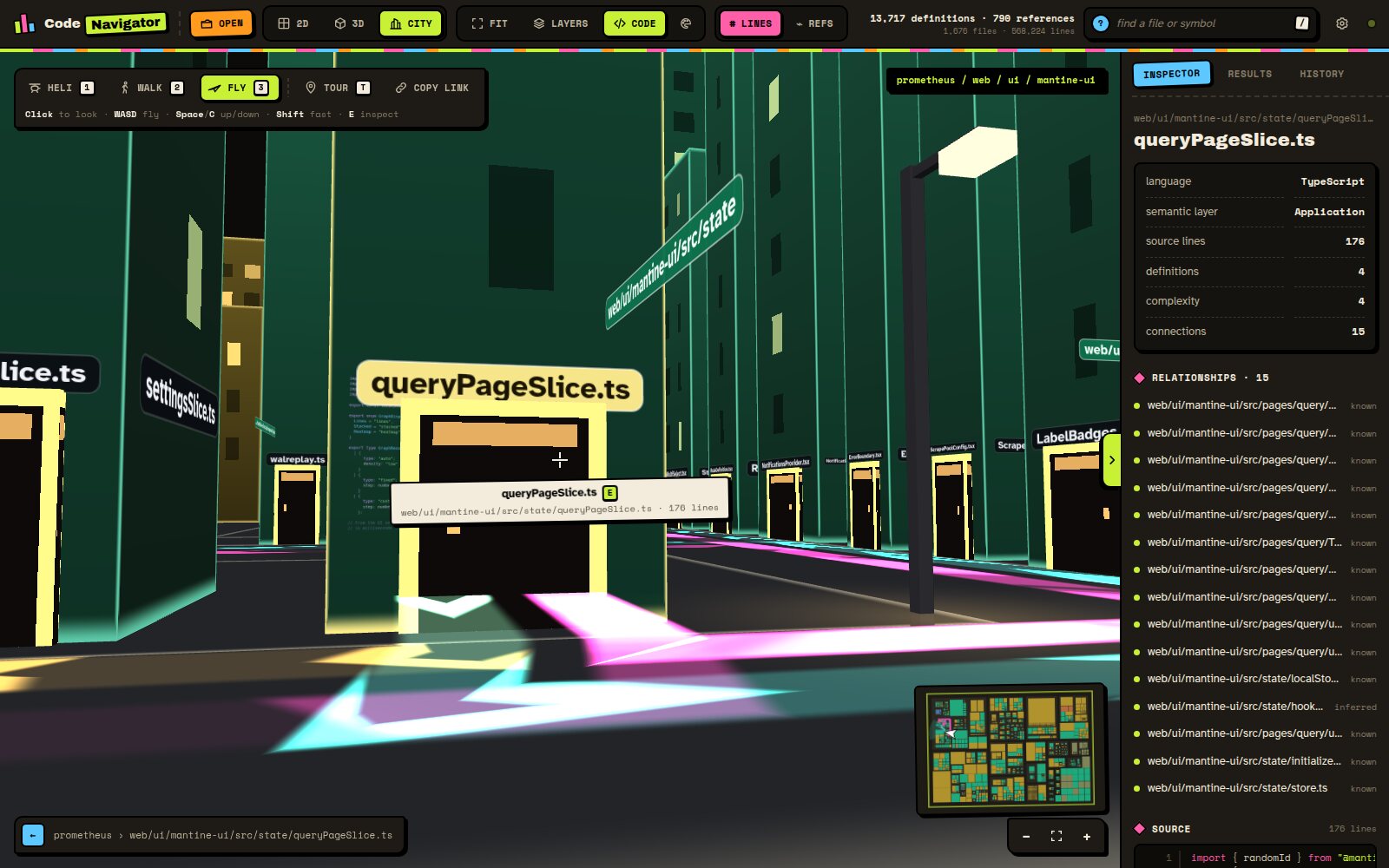
Click a building, or walk up to it, aim the crosshair and press E. The sidebar shows the file's language, category, line count, number of definitions, complexity and every file it is connected to, each of which you can click to jump to. Below that is the full source code, syntax highlighted and scrollable, however long the file is.
In walk or fly mode you don't even need the sidebar. The building in front of you is named just under the crosshair, and when you walk right up to it the file's source code appears across its wall, big enough to read from the street. Signs with the file name are on every wall facing you, plus blade signs that stick out so you can still read them while walking past.
Search works everywhere. Press the slash key and type any part of a file name or the name of a function, class or type. Results appear in the sidebar, and in the city every match shoots a beam of light into the sky, so you can see at a glance where in the codebase something lives.
Following the dependencies
This is the bit I use most. Select a file and two kinds of glowing route appear on the roads.
- Cyan arrows lead out of the building to every file it imports. When the connection had to be worked out from a module name rather than a direct path, the arrows are amber instead, so you know it's a well-informed guess.
- Pulsing pink dashes lead in from every file that imports this one, flowing towards the building you selected.
Routes follow the actual streets, round corners and around buildings, leave through the front door of one building and go in through the front door of the other, down the alley to the back door if that's the only way in. Where an outgoing route and an incoming one share a road, they keep to their own lanes like traffic. Glowing arcs over the rooftops show the same connections as the crow flies, for when you want the big picture instead.
With a file selected, switch to walk mode and you start on its doorstep facing along the first route. Then just follow the arrows.
Security alerts: things on fire
If you sign in with GitHub and the repository has GitHub's security scanning switched on, CodeNavigator shows you where the problems are. There is no report to read. The affected buildings are on fire.
- Smoke rises from any file with open medium or low severity alerts.
- Flames are reserved for files with a high or critical alert.
- Yellow hazard tape reading DEPENDABOT ALERT wraps diagonally around buildings with a vulnerable dependency. These appear on the file that declares the dependency, such as a lock file or go.mod.
- Red hazard tape reading CODE SCANNING ALERT runs the other way, so a building with both kinds of problem is taped off with a big X.
The minimap marks every burning building with a red dot, the overview in the sidebar counts alerts across the whole repository, and selecting a burning file lists each alert with its severity, the line it points at and a link straight to GitHub. You only ever see alerts your own GitHub account is allowed to see.
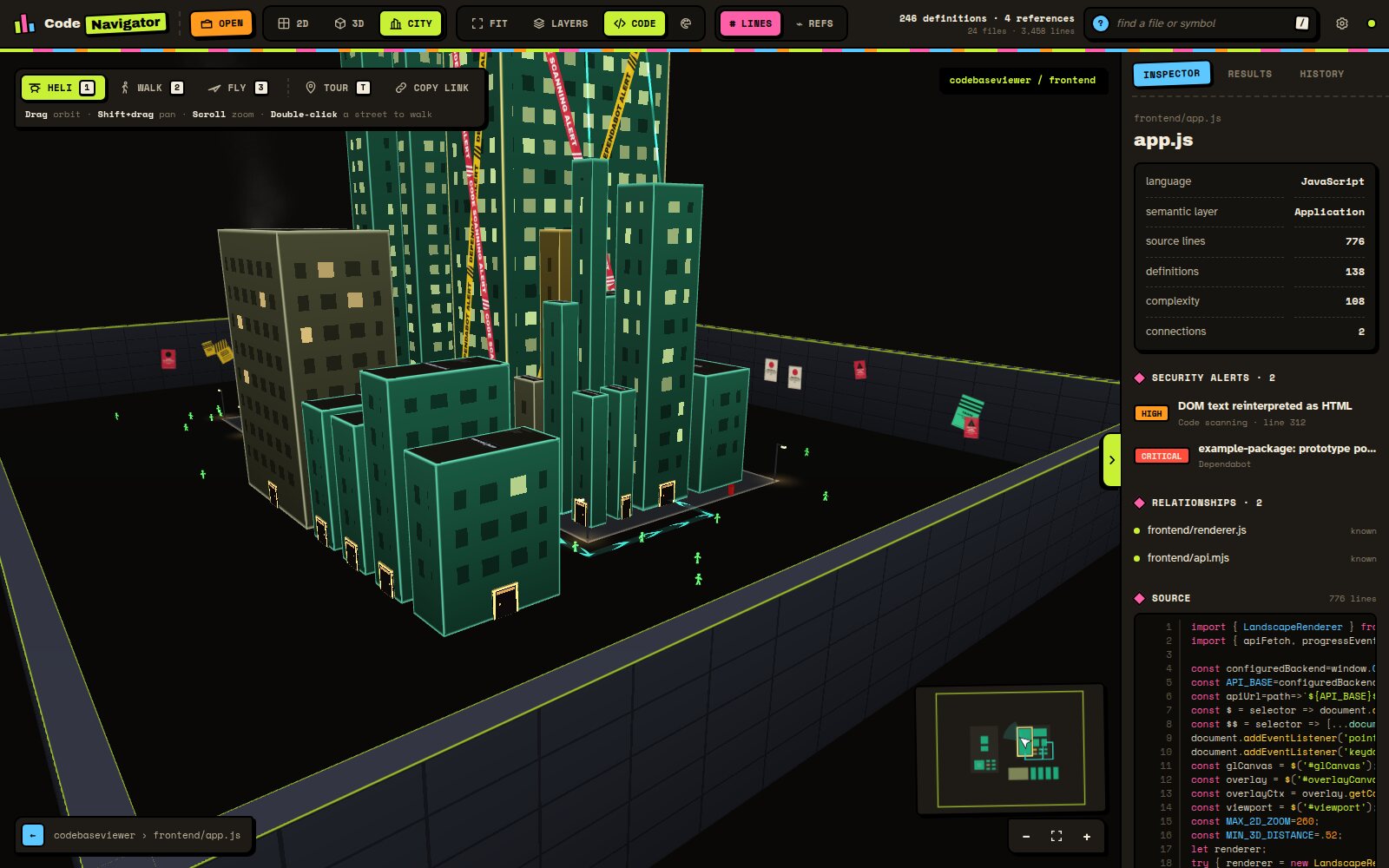
The alerts in this screenshot are illustrative examples, not real vulnerabilities.
The residents
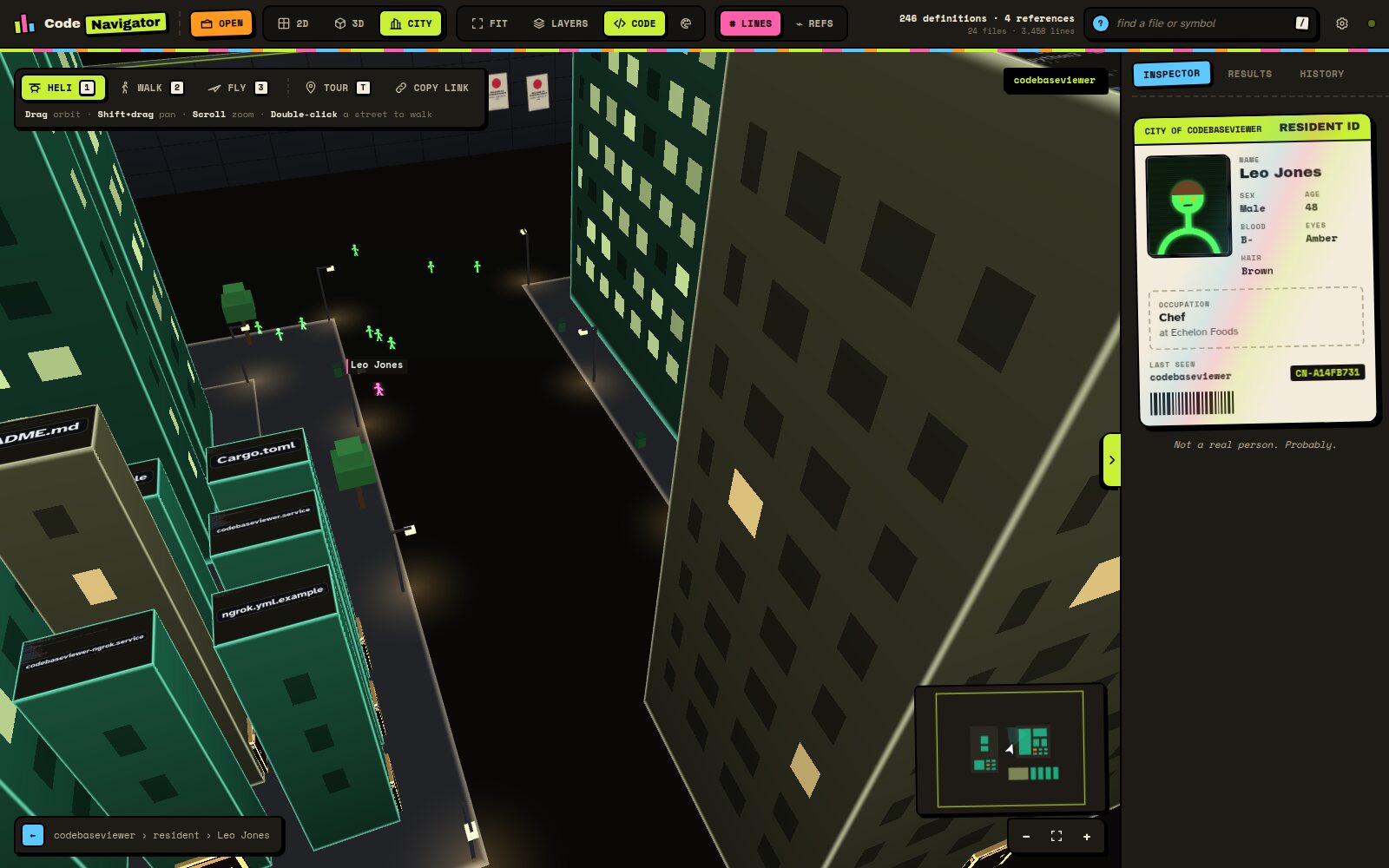
Every city has people. These ones are small, green, glowing stick figures who wander the streets, stop for a think, and drift into little groups to chat. They are not on any payroll and serve no analytical purpose whatsoever. They just make the place feel lived in.
Click one and they stop and turn pink, their name appears above their head, and the sidebar shows their resident ID card: a portrait, their name, sex, age, occupation and employer, eye colour, hair colour and blood type, plus where they were last seen, an ID number and a barcode. Everyone has their own identity, and it never changes, so the web developer you met on the corner of the storage district last Tuesday is still a web developer on Friday.
If they are too much, the city residents switch in settings sends everyone home.
Guided tour and sharing
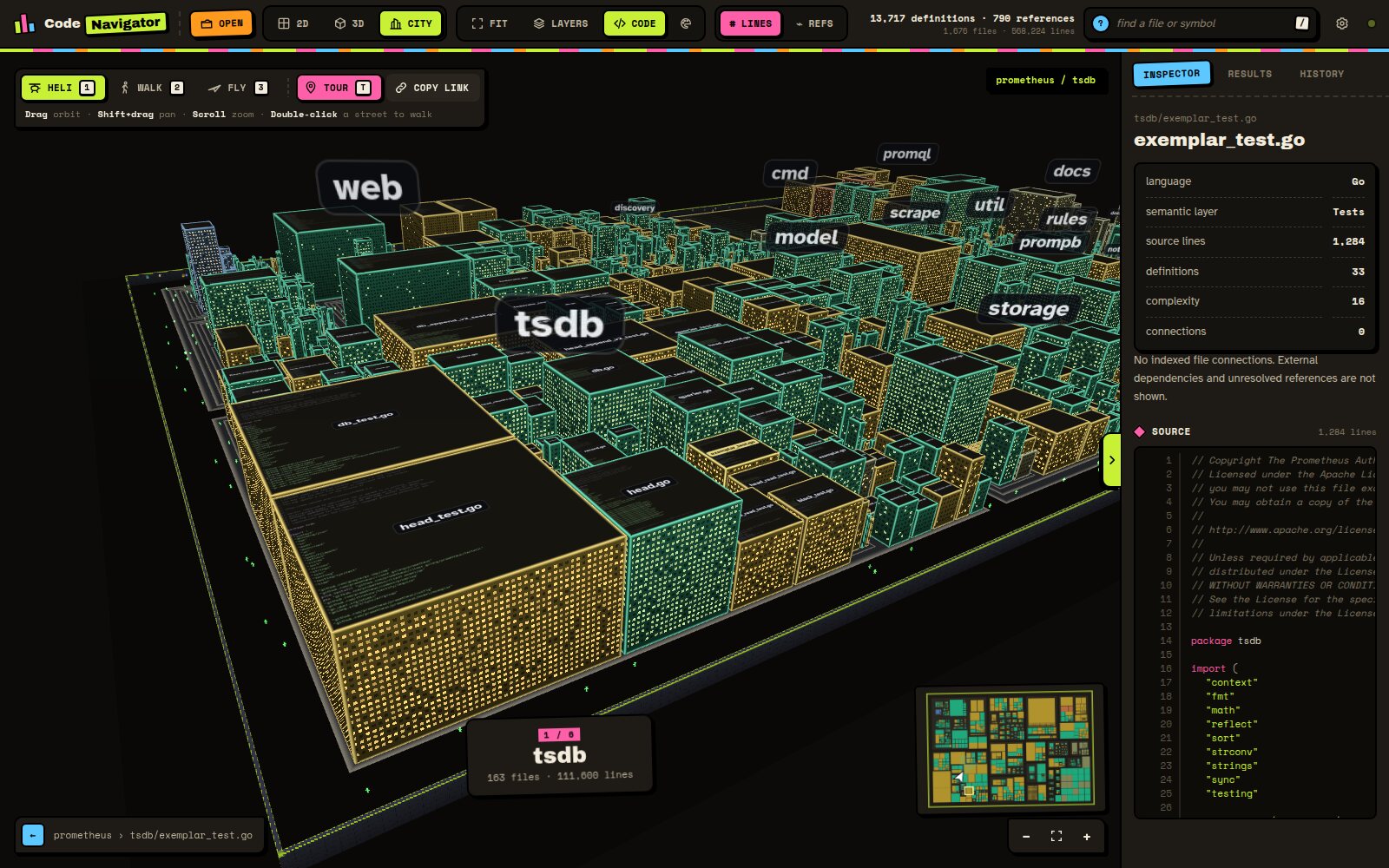
Press T, or the Tour button, and the helicopter flies you over the biggest districts in turn, circling each one while a caption tells you its name, how many files it holds and how many lines of code. Touch anything and you are back in control.
Copy link captures exactly where you are: the repository, the view, the camera position and angle, and the file you have selected. Send it to someone and when they open it CodeNavigator tells them the repository is being pulled from GitHub, builds it, and then flies them to precisely the same spot with the same file selected. It's the quickest way I've found to say "look at this bit". If the link points to a private repository they can't reach, or their access has expired, they get a clear warning and a button to sign in, after which the link carries on by itself.
Little things that make it nicer
- Keyboard friendly: Ctrl+O to open, slash to search, F to fit everything in view, 1, 2 and 3 for the camera, T for the tour, E to inspect and the left square bracket to hide the sidebar.
- Fold away the sidebar with the tab halfway down its edge when you want the whole screen for the city. It remembers your choice.
- Your preferences stick: colour palette, source text on or off, residents, and a frame-rate counter if you like numbers.
- History keeps the last files you looked at, one click away.
- Coverage at a glance: before you pick anything, the sidebar summarises the whole repository, with file, line, definition and link counts and a breakdown by category.
- Kind to motion-sensitive people: if your device asks for reduced motion, the interface stops wiggling and animating.
Try it
CodeNavigator is free to use at codenav.dixon.cx. Paste in a repository you know well and see whether its shape matches the one in your head; in my experience it rarely does, and that's the interesting part. If you'd rather dive straight in, the Prometheus link below opens a big, well-organised city with plenty to explore.