4. Devices and operating systems
The short version
- No platform is universally "safe". Every device trades convenience, cost and compatibility against privacy.
- Permissions reduce casual exposure; they are not a perfect wall. Give access only when an app genuinely needs it.
- Update promptly, then recheck your privacy settings. Updates fix flaws but can also change behaviour.
- Encryption protects data at rest, not data in use. Turn it on anyway: lost phones are routine.
- Match the device to the job. Banking on a stable, well-supported platform; experiments somewhere the stakes are lower.
Your platform defines your exposure
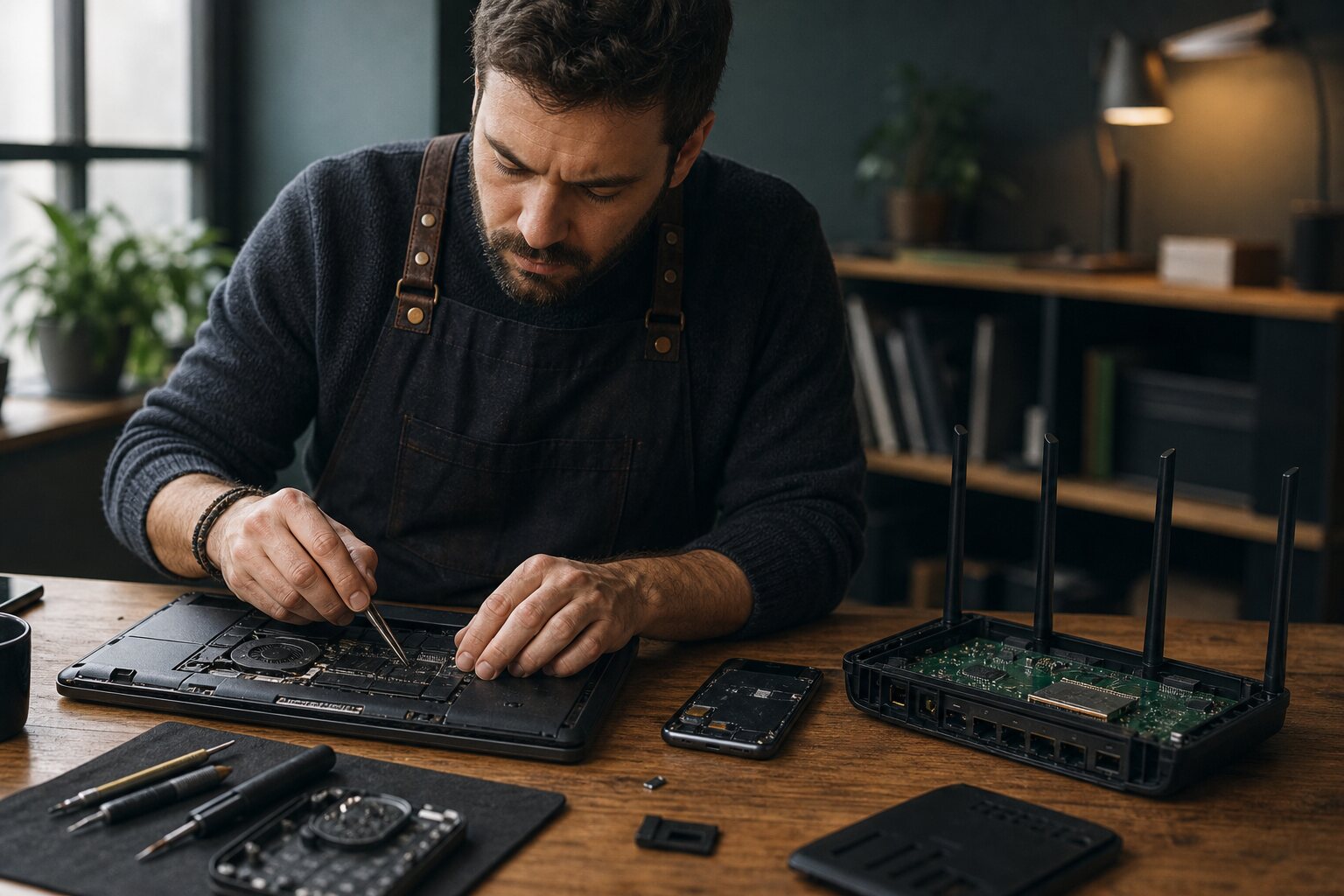
Your device is not just a screen and some apps. It is sensors, radios, storage and layers of software, all deciding what runs, what gets recorded and what can be shared.
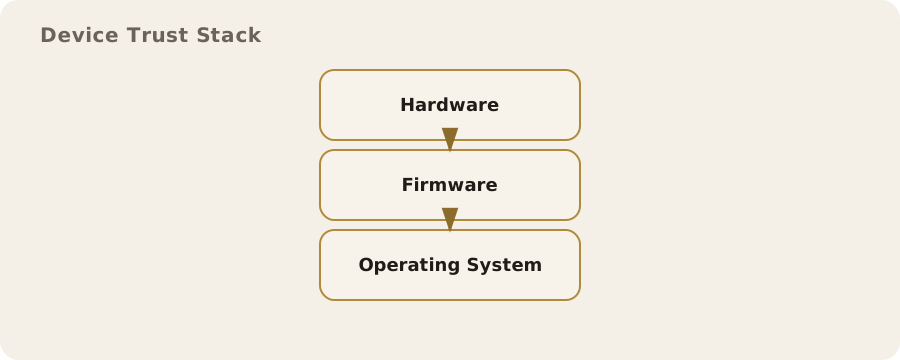
The operating system (OS) sits in the middle, acting as traffic controller between the hardware, your apps and the wider internet. That control is what makes modern devices useful, and it is also what defines their exposure.
There is no universally "safe" platform. Each device and OS trades convenience, cost and compatibility against privacy and security. Understanding those choices tells you what you can rely on, what you should manage yourself and what you simply accept as the cost of daily life with technology.
The OS as a gatekeeper
The OS decides which programs can run, how they reach your files and how they use hardware such as the microphone, camera and location services.
- Phones use permission systems: an app asks for the camera, the OS asks you to allow or deny.
- Laptops may offer similar prompts but often allow broader access by default.
Myth: these prompts are a simple on/off switch for privacy. Reality: giving a weather app location access does not share your whole device history, but it does let the app collect and send location data while it runs. Some systems offer "approximate" or "precise" location, and the difference can matter a lot if you live or work somewhere sensitive.
Use permissions to cut casual exposure, not to build a perfect boundary. A ride-hailing app needs precise location; a torch app does not. Restricting the torch is meaningful. Expecting the taxi app to work without location is not. Grant access only when it is needed, and revisit your choices after updates.
Phones: convenience by design
Smartphones are built to be always connected. They carry several radios (mobile, Wi-Fi, Bluetooth, often NFC), are usually signed in to a central account and never leave your side. That makes them powerful and naturally revealing.
Even with perfectly ordinary behaviour, your phone produces a stream of metadata:
- which networks you connect to;
- how often you move between cell towers;
- which apps are active at any given time.
The good news: on mainstream mobile platforms, apps are sandboxed, so security against common malware and low-effort attacks is typically strong. A sandbox is a restricted environment that stops an app reading data from other apps or the OS. That is a real advantage over older desktop systems, where one compromised app could read almost everything.
The catch: the platform owner becomes the ultimate gatekeeper. It decides which apps are allowed, how updates work and what diagnostic data is collected. That is not necessarily a problem, but it is a dependency on a vendor's choices.
Apps from an official store are likely safer than ones from an unknown website. The risks you still accept are that an app collects more than it needs, or that the platform's own services gather usage data for analytics and personalisation. You can reduce this:
- turn off optional telemetry;
- limit background refresh;
- review which apps may run when you are not using them.
What you cannot fully avoid: the OS will still talk to the vendor for updates and essential services.
Laptops and desktops: flexibility and exposure
Desktop and laptop systems give you more control and more surface area. They run a wider variety of software, often from any source you like. Great for work and creative tasks, but it means more ways to install software, more background services and a broader range of hardware drivers with patchy security histories.
Quick comparison:
- A photo editor plug-in may only touch the image files you open.
- A browser extension can see your web traffic and interact with the sites you visit.
People often treat extensions as small accessories. They are full-powered software. On most desktop browsers, extensions can effectively read what you see and do online, so keeping few of them, from sources you trust, is a practical step that needs no specialist knowledge.
Desktops also allow multiple user accounts, which can separate work and personal life. Not a perfect boundary, but useful. A dedicated account for banking or for the children reduces accidental cross-contamination, and blunts some malware that relies on user permissions.
Updates: the uncomfortable trade‑off
Updates are the most effective defence against routine security issues. They also change behaviour, add features and sometimes bring new data collection. That is not paranoia, just how software development and business models work.
So the tension is:
- delay updates and you stay open to known flaws;
- install them and they may alter privacy settings or add new tracking integrations.
The balanced approach: update promptly but deliberately. Skim the notes for major updates when you can, and revisit privacy settings afterwards. Mobile updates are usually safer and more predictable because hardware and software are tightly integrated. Desktop updates can occasionally break drivers or remove older features. You cannot eliminate the risk, but you can manage it by making updates a routine rather than a reaction to a scare.
Accounts, identity, and device binding
Modern systems nudge you to sign in with a central account. That gives you sync, backups and "find my device". It also links your activity across devices. Phone, tablet and laptop from the same vendor on the same account means the vendor can see usage patterns across all three.
That may be fine; it often makes life easier. The trade-off is that your device identity becomes tightly tied to one account.
You choose how deep that link goes. For example:
- use the central account for app updates and device recovery, but keep your browser profile or email with a different provider;
- use local accounts on desktops for tasks that do not need syncing.
That reduces correlation without total separation. In the UK context it matters most on shared family computers and work devices, where identity boundaries blur in ways that affect privacy more than security.
Pre‑installed software and the unseen surface
Many devices arrive with software you never chose. Some is harmless. Some is commercial, tied to partnerships or ad networks, and this is more common on budget phones and laptops. The risk is not always malice; it is more services running and more data shared in the background.
Remove or disable apps you do not use. Some platforms limit this, but even disabling can stop background access. Buying new? Higher-end models often ship with less pre-installed software. No guarantee of privacy, but less clutter to manage.
Encryption and storage realities
Most modern devices use full-disk encryption, which scrambles stored data so it cannot be read without the right key.
- Phones: usually automatic, tied to your lock screen code.
- Laptops: may be optional.
It is an important protection against loss or theft. It does not stop access while the device is unlocked, or by any software you have allowed to use your files.
Myth: encryption protects against all monitoring. Reality: it protects data at rest. It does not protect data you are actively using, and it does not stop the OS or apps sending information over the network. Still worth enabling, because physical loss is a routine risk, especially for phones and portable laptops.
Network radios and the trail they leave
Your radios announce your presence. Wi-Fi, Bluetooth and mobile signals can all be observed by nearby equipment. In busy places like train stations or shopping centres, these signals are routinely used to manage networks and crowd flows. Not necessarily sinister, just how modern infrastructure works.
Turn off radios you are not using, especially Bluetooth, which tends to stay on for convenience. Switching it off reduces unwanted pairing attempts and passive tracking. The trade-off: wireless headphones and smart watches need it. The point is not to keep everything off, but to remember that each radio is a small broadcast channel.
Alternative operating systems and custom builds
Some people switch operating system to cut data collection or gain control: a custom ROM on a phone, or a Linux distribution instead of Windows or macOS on a desktop.
- Upsides: less reliance on one vendor, and often more visibility into what the system is doing.
- Downsides: possibly fewer security updates, weaker hardware support, and trouble with banking apps and contactless payments.
A very UK-practical issue: some banking and government apps require strong device attestation. A modified OS may fail those checks even if it is otherwise secure, pushing you back to a mainstream device for essential services. More control can mean less compatibility, and that cannot be wished away. For some people it is acceptable; for others it creates more risk by pushing them into workarounds.
Shared and managed devices
Employer and school devices are usually managed: the organisation can install software, enforce policies and sometimes monitor use. Often that is for compliance and support rather than anything sinister. The risk is that personal activity on them can be observed or logged.
The fix is behavioural, not technical: keep personal use minimal and treat managed devices as work equipment.
Shared family devices are more about accidental exposure. A parent leaving a browser logged in can expose personal email or bank details to a child. Separate user accounts and lock screens are a simple, effective fix with no specialist tools needed.
Choosing devices with context in mind
There is no single "best" device for privacy or security.
- A phone that is excellent for security updates may collect more analytics by default.
- A flexible, open device may need more attention to avoid insecure software.
Your context matters. Someone working with sensitive sources or in a regulated profession will accept different trade-offs to a student who values convenience and cost.
Map what you do to the device you use.
- Online banking: the most stable, well-supported platform you can get, kept updated, with no unnecessary software.
- Experimenting and learning: a separate device or separate account, where the stakes are lower.
This is not about fear. It is about matching the platform to the role it plays in your life.
What to revisit regularly
Devices change quietly. A phone that was private enough two years ago may not be now, simply because the way you use it has changed. Revisit these from time to time:
- Which apps have access to location, microphone and camera.
- Whether background activity is necessary for each app.
- Browser extensions and installed plug-ins.
- Whether your OS and firmware updates are current.
- Whether you still need all accounts signed in on a given device.
This is not a one-off task. It is basic maintenance that keeps your exposure matching your intentions. The goal is not perfection; it is devices that behave predictably and suit the life you actually live.
Do this now
- Open your phone's permission settings and remove location, microphone or camera access from one app that does not need it.
- Count your browser extensions and remove any you no longer use.
- Turn Bluetooth off if nothing is paired and in use right now.
- Check that full-disk encryption is switched on for your laptop.